
Build a One-Drop Contact Sheet Generator on macOS (Dropzone 4 + AppleScript + ImageMagick)
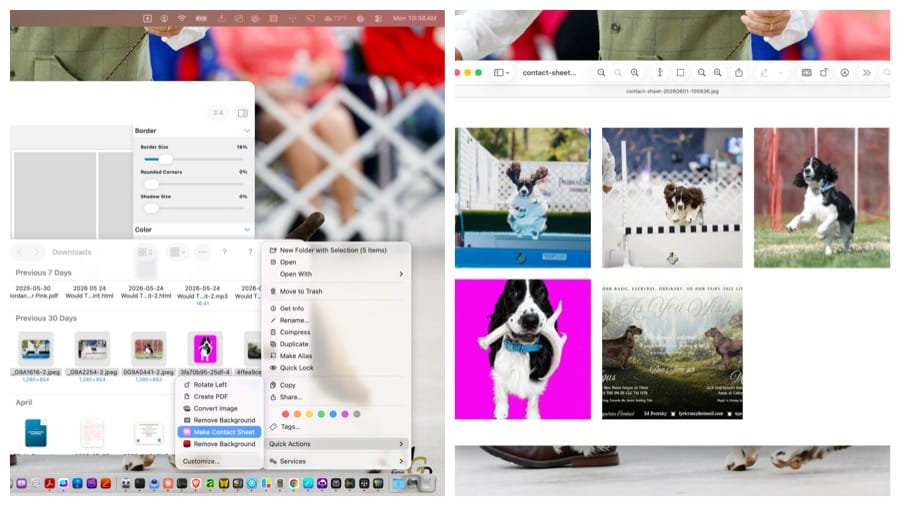
If you've ever needed to quickly turn a pile of photos into a single contact sheet for review, printing, or sharing, you've probably wished for a simple workflow: drop a bunch of images onto something and instantly get a neat grid montage.
Dropzone 4 is fantastic for drag-and-drop workflows, but instead of hunting for a prebuilt action, you can build your own in about 15–30 minutes using tools you already have on macOS:
- AppleScript (saved as a droplet-style Application)
- ImageMagick (for the montage generation)
- Optional integrations: Dropzone 4 and Shortcuts (Finder Quick Action)
This guide walks through the whole project step-by-step, including the gotchas you'll hit on Apple Silicon Macs.
What We're Building
A small macOS utility app called Make Contact Sheet.app that:
- Accepts dropped images (JPG/PNG/HEIC/etc.)
- Automatically chooses a grid size based on how many images you drop
- Runs ImageMagick's
montagecommand - Outputs a file to your Desktop named like
contact-sheet-YYYYMMDD-HHMMSS.jpg
Then we'll integrate it two ways:
- Dropzone 4 — Add it as an “Open Application” target and drop images onto it
- Finder Quick Action — Select images → right-click → Quick Actions → Make Contact Sheet
Prerequisites
- Homebrew
- ImageMagick (via Homebrew)
- Script Editor (built into macOS)
- Optional: Dropzone 4, Shortcuts
Step 1: Install ImageMagick
brew install imagemagickConfirm it's installed:
which magick
magick -version
On Apple Silicon Macs, which magick typically returns /opt/homebrew/bin/magick. This matters because AppleScript's do shell script doesn't inherit your normal Terminal PATH — we'll use the full path to avoid “command not found” errors.
Step 2: Create the AppleScript Droplet App
- Open Script Editor
- Paste the script below
- Save as an Application: File → Save… → File Format: Application → name it
Make Contact Sheet.app
(*
Auto-Grid Contact Sheet / Collage Droplet for macOS
---------------------------------------------------
Requires ImageMagick (Homebrew):
    brew install imagemagick

Apple Silicon Homebrew path:
    /opt/homebrew/bin/magick

Fix included:
- Explicit system font to avoid: "montage: unable to read font ''"
*)

on open droppedItems
	if (count of droppedItems) is 0 then
		display dialog "No files were dropped." buttons {"OK"} default button "OK"
		return
	end if

	-- ===== SETTINGS =====
	set magickPath to "/opt/homebrew/bin/magick"
	set systemFontPath to "/System/Library/Fonts/Helvetica.ttc"
	set thumbSize to 300 -- square cell size in px
	set spacing to 12 -- space between cells
	set outputFormat to "jpg" -- "jpg", "png", or "pdf"
	set bgColor to "white"
	-- ====================

	-- Verify ImageMagick exists
	try
		do shell script quoted form of magickPath & " -version >/dev/null 2>&1"
	on error
		display dialog "ImageMagick not found at:" & return & magickPath & return & return & ¬
			"Install with: brew install imagemagick" buttons {"OK"} default button "OK"
		return
	end try

	-- Verify font exists (avoid blank default font issues)
	try
		do shell script "/bin/test -f " & quoted form of systemFontPath
	on error
		-- Fallback (rarely needed)
		set systemFontPath to "/System/Library/Fonts/Supplemental/Arial.ttf"
	end try

	set desktopPath to POSIX path of (path to desktop folder)
	set timeStamp to do shell script "date +%Y%m%d-%H%M%S"
	set outPath to desktopPath & "contact-sheet-" & timeStamp & "." & outputFormat

	-- Build a safe, quoted list of supported image files directly (no temp files/heredocs)
	set inputArgs to ""
	set imageCountNum to 0

	repeat with f in droppedItems
		try
			set p to POSIX path of f
			if my isSupportedImagePath(p) then
				set inputArgs to inputArgs & space & quoted form of p
				set imageCountNum to imageCountNum + 1
			end if
		end try
	end repeat

	if imageCountNum is 0 then
		display dialog "No supported image files were dropped." & return & return & ¬
			"Supported: jpg, jpeg, png, tif, tiff, heic, webp, gif, bmp" buttons {"OK"} default button "OK"
		return
	end if

	-- Auto-select columns (auto grid)
	set tileColumns to my autoColumnsForCount(imageCountNum)

	-- Optional: smaller thumbs for large batches
	if imageCountNum ≥ 60 then
		set thumbSize to 180
		set spacing to 6
	else if imageCountNum ≥ 40 then
		set thumbSize to 220
		set spacing to 8
	else if imageCountNum ≥ 25 then
		set thumbSize to 260
		set spacing to 10
	end if

	-- Build montage command (inputs FIRST, output LAST)
	set montageCmd to quoted form of magickPath & " montage" & inputArgs & space & ¬
		"-font " & quoted form of systemFontPath & space & ¬
		"-auto-orient " & ¬
		"-thumbnail " & thumbSize & "x" & thumbSize & "^ " & ¬
		"-gravity center -extent " & thumbSize & "x" & thumbSize & " " & ¬
		"-tile " & tileColumns & "x " & ¬
		"-geometry " & thumbSize & "x" & thumbSize & "+" & spacing & "+" & spacing & " " & ¬
		"-background " & quoted form of bgColor & space & ¬
		quoted form of outPath

	try
		do shell script montageCmd
		do shell script "open " & quoted form of outPath
		display notification "Created " & imageCountNum & " images in " & tileColumns & "-column grid" with title "Contact Sheet Done"
	on error errMsg number errNum
		display dialog "Failed to create contact sheet." & return & return & ¬
			"Error " & errNum & ": " & errMsg buttons {"OK"} default button "OK"
	end try
end open

on isSupportedImagePath(p)
	set pLower to my toLowerText(p)

	if pLower ends with ".jpg" then return true
	if pLower ends with ".jpeg" then return true
	if pLower ends with ".png" then return true
	if pLower ends with ".tif" then return true
	if pLower ends with ".tiff" then return true
	if pLower ends with ".heic" then return true
	if pLower ends with ".webp" then return true
	if pLower ends with ".gif" then return true
	if pLower ends with ".bmp" then return true

	return false
end isSupportedImagePath

on toLowerText(t)
	return do shell script "/bin/echo " & quoted form of t & " | tr '[:upper:]' '[:lower:]' | tr -d '\\r\\n'"
end toLowerText

on autoColumnsForCount(n)
	-- Simple auto grid thresholds
	if n ≤ 1 then
		return 1
	else if n ≤ 4 then
		return 2
	else if n ≤ 9 then
		return 3
	else if n ≤ 16 then
		return 4
	else if n ≤ 25 then
		return 5
	else
		return 6
	end if
end autoColumnsForCount
Test It
Drag a handful of images onto Make Contact Sheet.app. A contact sheet appears on your Desktop and opens automatically.
Step 3: Add to Dropzone 4
The most reliable approach: add the droplet as an Open Application action (not a script action).
- Open Dropzone
- Add a new item → Open Application
- Select
Make Contact Sheet.app - Drop images onto that Dropzone action
Dropzone passes the files through; the droplet handles everything else.
Step 4: Finder Quick Action via Shortcuts
- Open Shortcuts → new shortcut named Make Contact Sheet
- Click ⓘ → enable Use as Quick Action + Finder
- Set Receives to Files
- Add action: Run AppleScript, paste the script below
on run {input, parameters}
	set appPOSIXPath to "/Applications/Make Contact Sheet.app"
	set quotedArgs to ""
	set itemCount to 0

	repeat with itemRef in input
		try
			set p to POSIX path of (itemRef as alias)
			set quotedArgs to quotedArgs & " " & quoted form of p
			set itemCount to itemCount + 1
		end try
	end repeat

	if itemCount is 0 then
		display dialog "No usable files received." buttons {"OK"} default button "OK"
		return input
	end if

	do shell script "/usr/bin/open -a " & quoted form of appPOSIXPath & quotedArgs
	return input
end run
Now: select images in Finder → right-click → Quick Actions → Make Contact Sheet.
Note: Shortcuts Quick Actions are not drag-and-drop targets — they work on selected files via the right-click menu. For drag-and-drop, use the droplet directly (Finder or Dock) or via Dropzone.
Troubleshooting
“magick: No such file or directory” — AppleScript's shell doesn't inherit your Terminal PATH. Fix: use the full path /opt/homebrew/bin/magick.
Montage errors about filenames / output treated as input — Inputs must come before the output path. The script above builds the command correctly.
Dragging from Yoink or Mail behaves oddly — These sources can produce temp paths. Finder is the most stable drag source.
Enhancements to Try Next
- Save output to the same folder as the dropped images instead of Desktop
- Prompt for output format (JPG / PNG / PDF)
- Generate letter-size printable PDF contact sheets
- Add filenames as captions under each thumbnail
- Sort images by filename, creation date, or EXIF date before building the sheet
Wrap-Up
Two clean workflows, one underlying tool:
- Drag/drop: Dropzone 4 → Open Application →
Make Contact Sheet.app - Selection-based: Finder → right-click → Quick Actions → Make Contact Sheet
Both routes feed images into the same droplet app, which calls ImageMagick and drops a ready-to-share contact sheet on your Desktop.

Comments ()