
Another Piece on Why Your Mac Looks Wrong on a 4K Monitor — Even a Great One
This one started personally. My son — a longtime Windows and Linux user — recently got a MacBook M5 Max 14". He was excited. Within an hour of plugging it into his external monitor, he was frustrated. Text looked soft. The interface felt off. Nothing in the display settings fixed it properly.
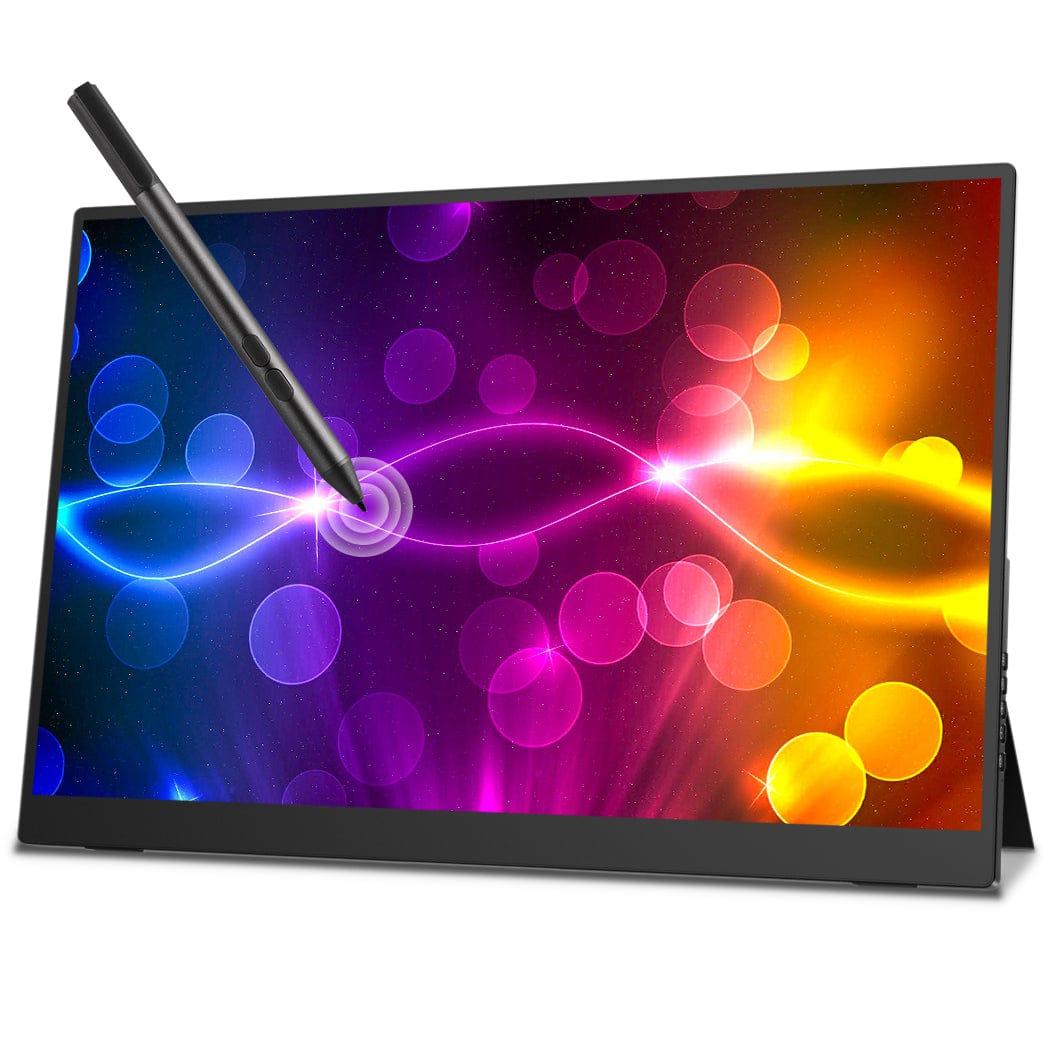
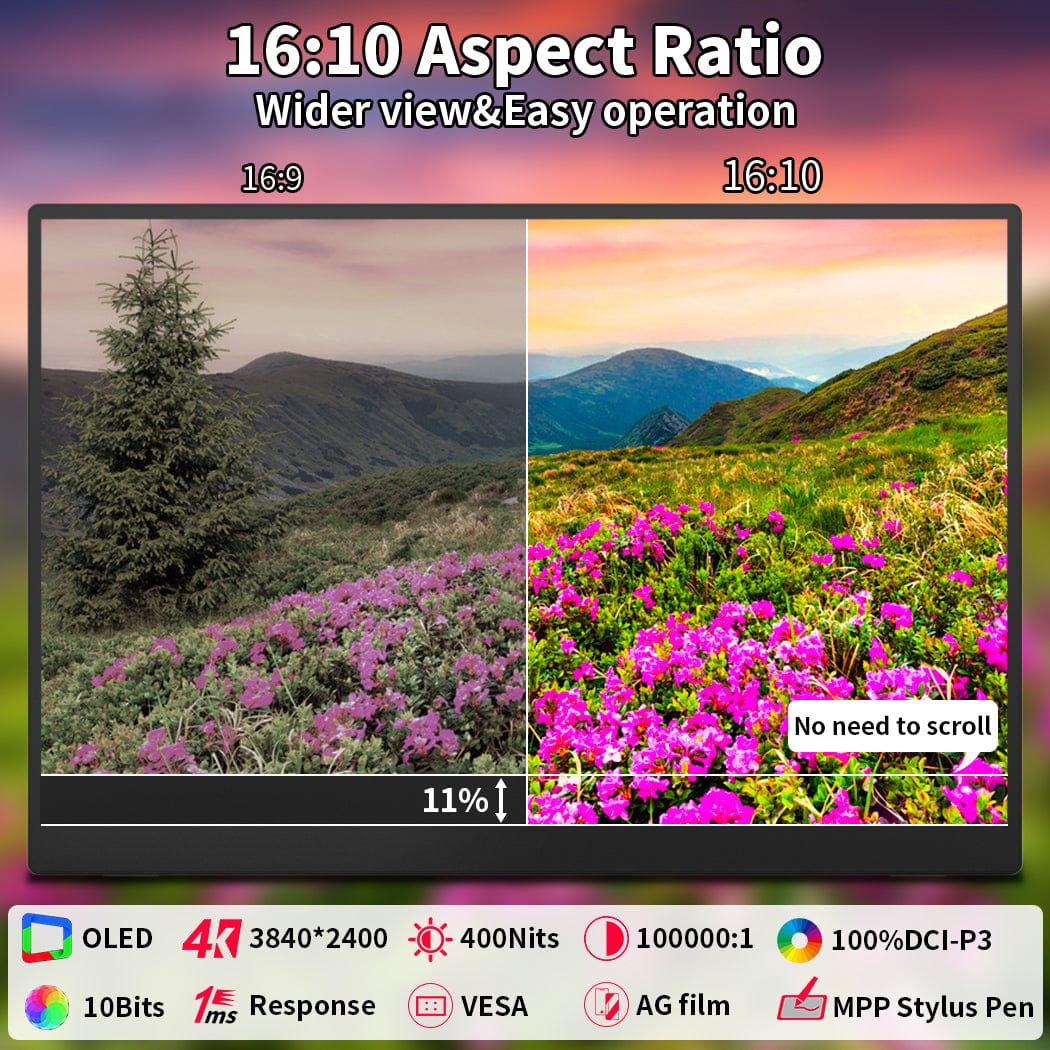
The monitor in question: a MageDok PI-X9, a 16-inch 4K OLED portable monitor with a 3840×2400 resolution and approximately 282 pixels per inch.
If you know anything about Apple's display philosophy, this should be almost ideal — it has more pixels per inch than Apple's own $1,599 Studio Display. And yet it didn't look right on a brand new M5 Max. He called me, and I found myself explaining something I'd explained before, to other people, about a problem that keeps tripping up anyone who comes to Mac from Windows or Linux.
So: here is yet another attempt to explain it clearly, aimed specifically at people switching from those platforms.
First: What Is Retina, Really?
When Steve Jobs unveiled the iPhone 4 in 2010, he introduced the term "Retina display" with a specific claim: pack enough pixels into a screen that the human eye, at normal viewing distance, can no longer distinguish individual pixels. The threshold he cited was roughly 300 pixels per inch (PPI) for a device held about 12 inches from your face.
That number isn't magic — it's geometry. What actually matters is pixels per degree (PPD) of visual angle: how many pixels fall within each degree of arc your eye sweeps across the screen. Jobs calculated the threshold at around 52–63 PPD. The iPhone 4's 326 PPI display hit 63 PPD at arm's length.
But you don't hold a desktop monitor 12 inches from your face. You sit roughly 24–30 inches away. At that distance, the math works out to approximately 218 PPI for a desktop display at normal viewing distance — which is exactly why Apple's 27-inch Studio Display runs at 5K (5120×2880). At 27 inches, that's 218 PPI exactly. The number was chosen deliberately.
A portable monitor like the MageDok PI-X9, used close to your face as a laptop companion, needs even higher density. At 282 PPI it actually exceeds the Retina bar for any realistic use distance. On paper, it should be perfect.
The 2× Rule: Why Apple Does It Differently Than Windows or Linux
On Windows or Linux, display scaling works in percentages: 100%, 125%, 150%, 175%, 200%. If your monitor is a bit dense, scale up. This feels flexible and sensible.
Apple took a fundamentally different approach. macOS uses integer 2× scaling (what Apple calls HiDPI mode): every logical pixel maps to exactly 4 physical pixels (2 wide × 2 tall). The OS renders your interface at, say, 1920×1200 logical pixels, but drives the display at 3840×2400 physical pixels — every line and curve rendered with four real pixels instead of one. The result is razor-sharp text because there is no fractional math involved.
Why does fractional scaling create problems? Because pixels are physical. If you tell a display to render a 1-pixel-wide border at 150% scaling, that border is mathematically 1.5 pixels wide — and no display can light up half a pixel. The OS approximates using antialiasing, blending colors at the edges. This is why text on Windows at 125% or 150% often looks slightly soft, and why Linux fractional scaling still causes blurry text in some applications.
Apple's bet: build the hardware to make integer 2× scaling the only option you need. For the MageDok PI-X9 at 3840×2400, the ideal macOS mode would be 1920×1200 logical driving 3840×2400 physical — a clean, exact 2×. This should work perfectly. It doesn't. Here's why.
The M4/M5 Regression: The Specific Problem That Hit My Son
Apple Silicon M1 through M3 could run a 4K external display in a proper 2× HiDPI mode. On M4 and M5, a firmware-level change in the display coprocessor hardcoded the maximum backing store width at 6720 pixels. For the PI-X9's 3840×2400 resolution, a true 2× HiDPI would require a 7680×4800 backing store — well beyond that cap. macOS cannot offer the clean 1920×1200 HiDPI mode at all.
So the options on an M5 Max with a 282 PPI OLED portable monitor are:
- Native 3840×2400: uses every pixel on the OLED — crisp but UI elements are very small for comfortable use
- Best available HiDPI (~3360×2100 physical): sharp text, but cramped workspace using fewer pixels than the panel has
- Lower scaled resolutions: comfortable workspace, but soft text due to downsampling math
None of these is the clean 1920×1200 logical answer the display deserves. The root cause is a single hardcoded constant in the M4/M5 display firmware (0x1A40 = 6720 pixels, needs to be 0x1E00 = 7680). It requires an Apple firmware update. It hasn't arrived yet.
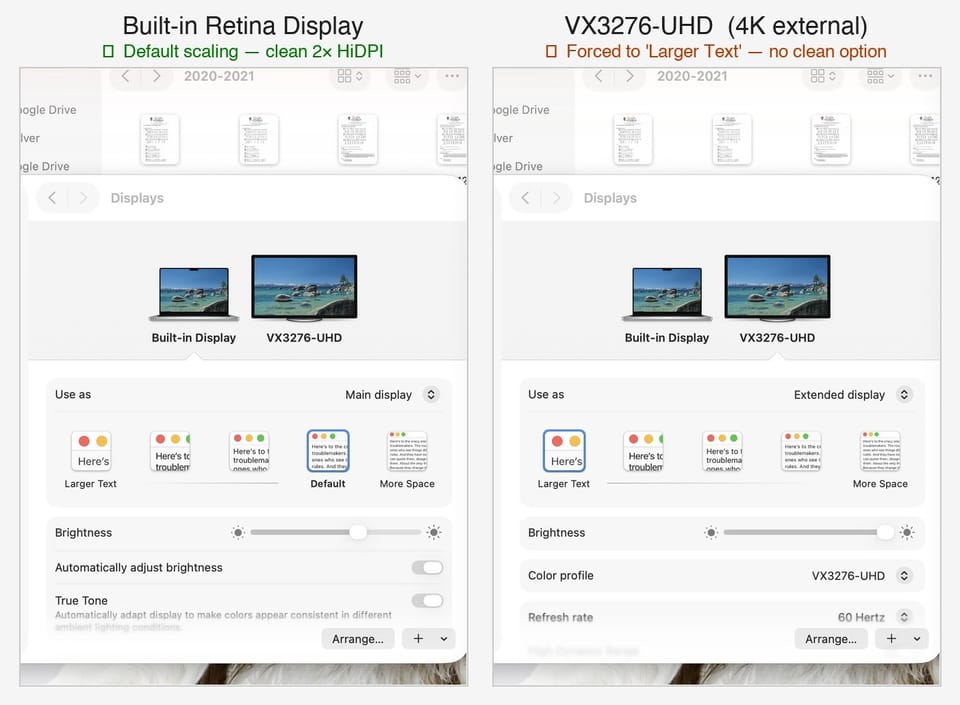
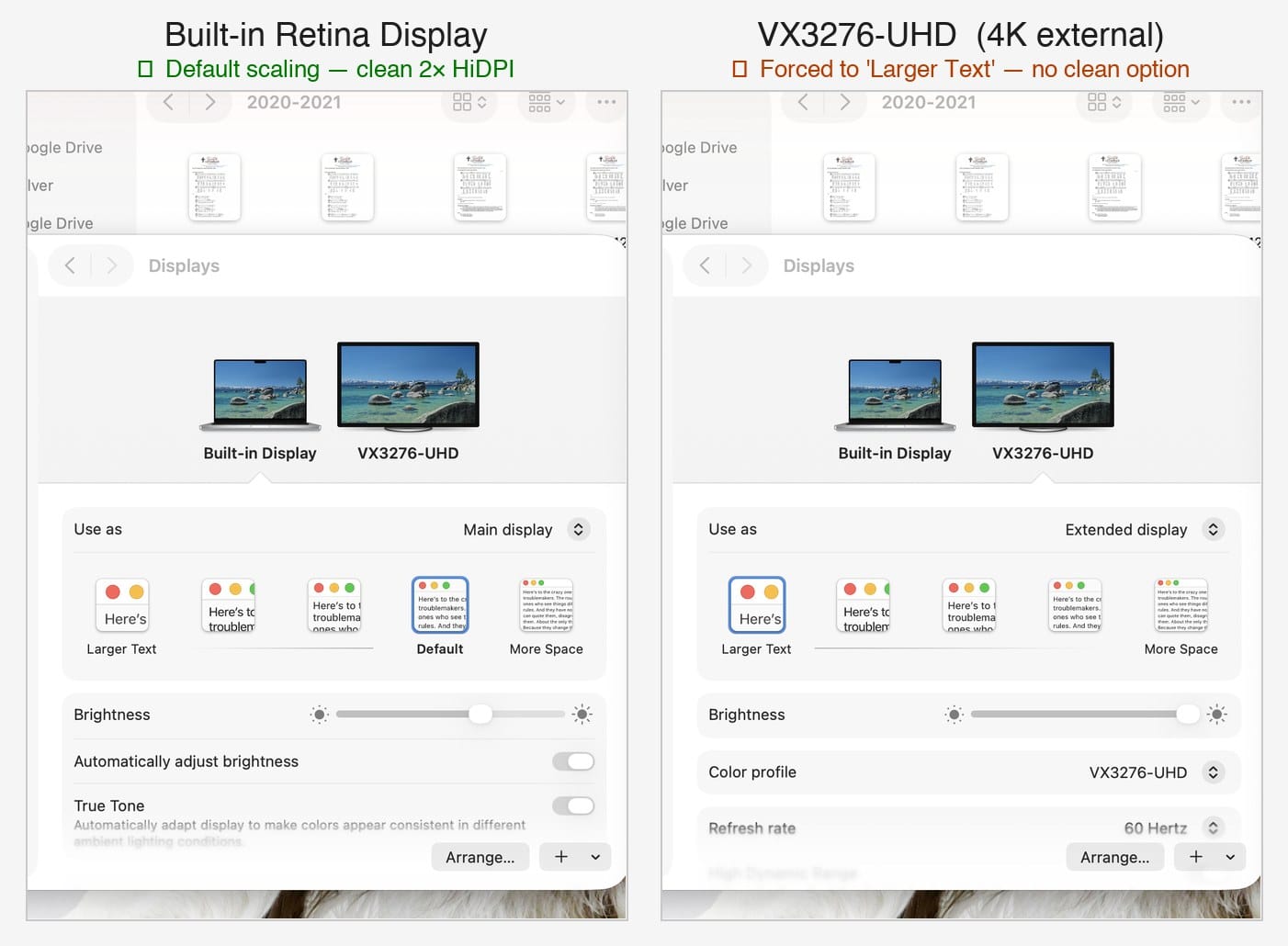
Here's what macOS Display Settings looks like when both screens are connected — notice the stark difference in what each display offers:
The Blurry Middle Ground: Why Scaled 4K Looks Soft
Even setting aside the M4/M5 regression, the underlying math creates problems for 4K on macOS. When macOS displays "Looks like 2560×1440" on a 4K display, it renders at 2560×1440 logical, upscales to a 5120×2880 backing buffer, then downsamples to fit the physical panel. That downsampling reintroduces blur — fractional math, the very thing Apple's 2× architecture was designed to avoid.
This is why switching from Windows or Linux to Mac with a 4K display is disorienting. On Windows, your 4K display works fine at 150% scaling. On macOS, that same display is operating outside its design parameters and something is always being approximated.
My 32-Inch ViewSonic: When 4K Actually Works Fine
My own setup offers a useful comparison. I use a ViewSonic VX3276-UHD — a 32-inch desktop 4K display — and this is actually one of the better 4K configurations for a Mac.
At 32 inches, 4K (3840×2160) measures approximately 138 PPI. That's low enough that running it at native 1× resolution — no scaling at all — is a genuine option. macOS does zero scaling math. Every pixel maps to exactly one pixel. The rendering is crisp and artifact-free.
The catch: at native 4K on a 32-inch screen, the macOS interface is noticeably small. Here's the actual comparison from my setup:
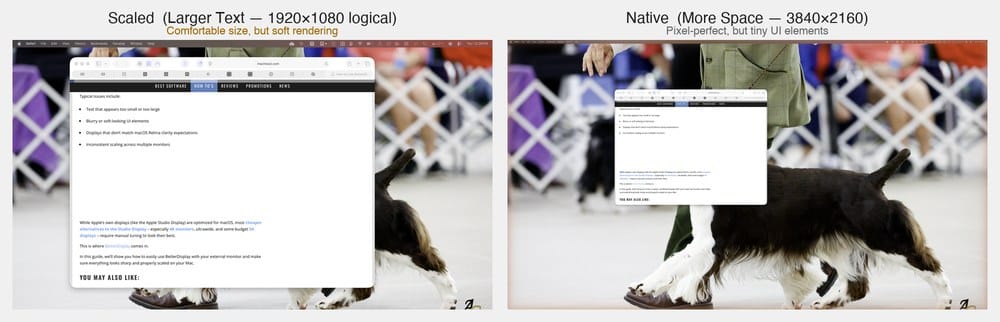
For someone with sharp vision at a normal desk distance, native 4K at 32 inches is workable. But it's a choice you shouldn't have to make. My son's 16-inch portable monitor doesn't have this option at all — at 282 PPI, native 1:1 would make the interface almost unusably small.
The Right Solution (The Expensive One)
Apple's intended answer is: buy a 5K monitor.
- Apple Studio Display (27", 5K, 218 PPI): ~$1,599
- LG UltraFine 5K (27", 5K, 218 PPI): ~$1,299
At 5K on a 27-inch panel, macOS renders at 2560×1440 logical and drives the display at 5120×2880 physical — a clean, exact 2×. No approximation. No blur. This is what macOS was built for.
For a portable use case, there isn't a clean answer yet. A mainstream 5K portable monitor doesn't exist. BetterDisplay is the best current workaround on M4/M5, using a virtual display mirroring trick to bypass the firmware cap. It works well, but it's a patch, not a fix.
Why Apple Did This (And Why It's Hard to Defend Right Now)
The philosophy was sound when Apple conceived it. Instead of a flexible-but-imprecise scaling system, Apple bet that the monitor market would follow iMac toward high-density panels, and that one clean integer implementation would beat ten approximate ones.
For every MacBook and iMac with its built-in Retina display, the bet paid off. The M5 Max's own 14-inch Retina screen — 3024×1964 at 254 PPI — is extraordinary. The cruel irony is that the MacBook has one of the best small screens available on any laptop, and it's the external display experience that fell apart.
The M4/M5 regression made things worse at exactly the wrong time. A single constant in the display coprocessor — 0x1A40 instead of 0x1E00 — is the entire problem. That's a firmware update. It hasn't happened.
For Windows or Linux users switching to Mac: you're not imagining it, you're not doing something wrong, and it's not your monitor. The system genuinely works differently by design, in a way that specifically disadvantages external 4K displays — even excellent, high-density ones. The built-in screen is world-class. Getting that experience externally requires either a 5K monitor, a firmware fix from Apple, or a third-party workaround.
My son is using BetterDisplay for now. A 5K display is on his list. Hopefully by the time he buys one, Apple will have quietly fixed the firmware and he won't need it.
Further Reading


Comments ()